Python for Excel
Build the model in Python. Deliver it through Excel.
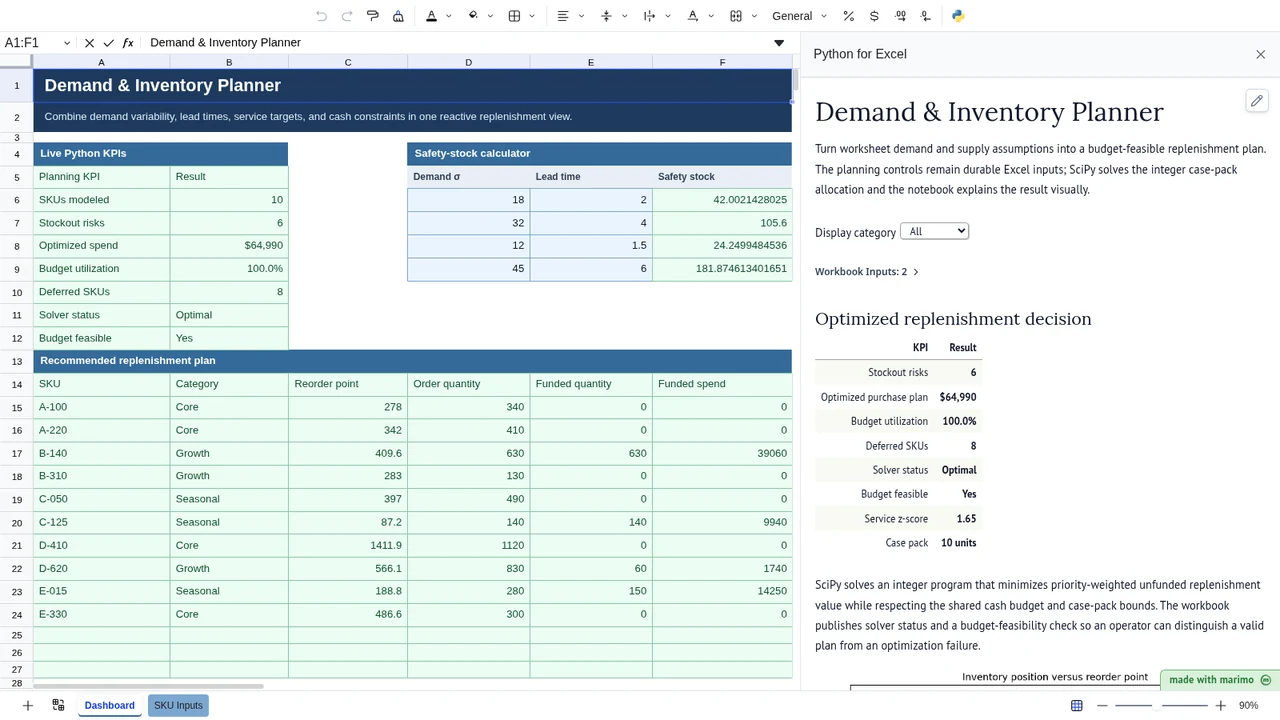
Python for Excel lets you build interactive applications and custom functions that run directly in your workbook. Connect workbook data to a reactive Python notebook, publish results and callable functions back into the worksheet, and open the finished workbook in a simplified Run mode for colleagues or clients.
The notebook experience is built on marimo and extended for Excel with workbook persistence, worksheet outputs and functions, and workbook-aware workflows.
- Try the web demo — explore the product without installing Excel.
- Install from Microsoft AppSource — use it in Excel for web or desktop.
What you can build
Python for Excel is intended for repeatable analytical applications where Excel remains useful as the input, review, or presentation interface and Python provides the underlying logic.
Examples include:
- Forecasting and financial-planning applications
- Valuation, scenario, and risk models
- Monte Carlo simulations
- Pricing and optimization tools
- Statistical analysis and forecasting workflows
- Engineering calculators
- Data-quality and reconciliation applications
- Client-delivered analytical models
The strongest fit is not a one-time calculation. It is an author building a reusable tool for other workbook users.
The application workflow
| Stage | What happens |
|---|---|
| Connect | Declare worksheet ranges, tables, or named cells as live Python inputs. |
| Build | Create calculations, controls, charts, validation, and workflow logic in a reactive notebook. |
| Publish | Send calculated values and callable Python functions back to Excel. |
| Save | Store the notebook source and preferred startup mode with the workbook. |
| Deliver | Give the workbook to another user and open it in a simplified Run mode. |
Author mode and Run mode
Edit mode is the development environment. The author can edit cells, run code, inspect reactive dependencies, use AI authoring tools, debug errors, and save the notebook.
Run mode presents the notebook as an application surface without showing code cells during normal operation. A workbook user can change assumptions, use controls, run defined workflows, and consume the published results through Excel.
The recipient still needs the Python for Excel add-in. They do not need a separate Python installation or development environment.
Quick start: build a workbook application
A notebook application usually has an upstream input cell, normal reactive calculation cells, and one downstream output cell.
1. Connect workbook inputs
Declare workbook dependencies in one cell and display the returned widget:
import boardflare as bf
inputs = bf.inputs(
sales=bf.range("Sales!A1:D20", headers=True),
tax_rate="Assumptions!B2",
)
inputs
- A one-cell reference becomes a Python scalar.
- A multi-cell reference becomes a pandas
DataFrame. headers=Trueuses the first row as DataFrame column names.- When the referenced workbook data changes, dependent notebook cells rerun.
2. Build the reactive model
Use the synchronized inputs in downstream cells:
sales = inputs.sales
tax_rate = inputs.tax_rate
revenue = float(sales["Revenue"].sum())
after_tax_revenue = revenue * (1 - tax_rate)
summary = [
["Metric", "Value"],
["Revenue", revenue],
["After-tax revenue", after_tax_revenue],
]
You can use normal Python and supported browser-compatible packages to create calculations, tables, charts, controls, and explanations.
3. Publish values and functions to Excel
Publish the complete output registry from one downstream cell and display the returned widget:
def discount(price, rate):
return price * (1 - rate)
outputs = bf.outputs(
values={"summary": summary},
functions={"discount": discount},
)
outputs
Worksheet formulas can then consume those outputs:
=BF.VALUE("summary")
=BF.FUNCTION("discount", A1, B1)
Published values and functions are live-session state. They are rebuilt when the saved notebook runs, and worksheet formulas report an appropriate waiting or not-running state when the notebook runtime is unavailable.
:::tip Important notebook pattern
Display the bf.inputs() and bf.outputs() results as notebook cell outputs. Their widgets maintain the live connection between the notebook and the workbook.
:::
Built-in AI authoring
The embedded notebook includes Marimo's AI authoring capabilities. Authors can use AI while working directly in the notebook to generate, explain, debug, and revise Python code.
Useful authoring requests include:
- “Connect the assumptions table as notebook inputs.”
- “Build a five-year forecast from these workbook ranges.”
- “Add validation for missing dates and negative quantities.”
- “Create a control for the scenario input.”
- “Publish this summary table back to Excel.”
- “Turn this Python function into a worksheet function.”
- “Explain why this cell is not updating.”
- “Refactor the model and document its assumptions.”
AI accelerates construction, but the durable artifact is the inspectable notebook and workbook application. Review generated code and validate consequential results before distributing the workbook.
Saving and sharing
Notebook source is saved in workbook storage together with the preferred Edit or Run startup mode. Live kernel state is not stored; inputs, outputs, functions, and widgets are recreated by running the notebook after it opens.
Before sharing an application:
- Save the notebook and confirm the Boardflare status reports Saved.
- Test the workbook after closing and reopening it.
- Test the intended startup mode.
- Confirm worksheet inputs and outputs update correctly.
- Add instructions for the workbook user.
- Share only with users who trust the workbook's executable Python source.
:::warning Executable workbooks A notebook-enabled workbook contains executable Python and can run when opened in Run mode. Open and share these workbooks only with trusted parties. :::
Privacy and network access
Python executes in a browser-based runtime rather than a separately installed local Python environment. Workbook inputs are delivered to that runtime so the notebook can calculate.
The runtime can also make supported network requests. Code that calls an API sends the data included in that request to the selected external service. AI authoring may likewise send the prompt and relevant authoring context to the configured AI service. Review your code, provider settings, and organizational policies before using confidential data.
Packages and environment
The add-in uses Pyodide, a Python runtime compiled for the browser. Common scientific packages such as pandas, numpy, and scipy are available. Other pure-Python packages can be installed with micropip when their dependencies are compatible with the browser environment.
import micropip
await micropip.install("textdistance")
import textdistance
Packages that require unsupported native extensions, unrestricted local file access, or a normal desktop operating-system environment may not work.
| Requirement | Recommended approach |
|---|---|
| Workbook ranges and tables | Use bf.inputs() and reactive notebook cells. |
| Values or tables returned to Excel | Publish with bf.outputs(values=...). |
| Reusable worksheet calculations | Publish with bf.outputs(functions=...) or use the Functions workflow below. |
| Files already imported into Excel | Use Power Query or workbook ranges as the notebook input. |
| Public or CORS-enabled APIs | Call the API from compatible Python code. |
| Local folders, desktop applications, or unrestricted system access | Use an external Python environment instead. |
| Unsupported compiled packages | Use a browser-compatible alternative or external/managed compute. |
Functions workflow
The add-in also includes a focused editor for creating reusable Python functions that behave like native Excel formulas. This workflow remains useful when the desired output is a calculation rather than a complete notebook application.
Quick example
Write a function:
def hello(name):
"""Return a greeting."""
return f"Hello {name}!"
Use it in Excel:
=HELLO("World")
Create and save a function
- Open the Editor tab.
- Write a standard Python function with explicit parameters.
- Save the function to the workbook.
- Type the function directly in a cell or insert it through the Function Dialog.

Custom functions are stored in workbook metadata and travel with the file. Another user can call them after installing the add-in and opening the taskpane.
Function arguments and results
Excel values are converted to Python automatically:
| Excel input | Python value |
|---|---|
| Number | float |
| Text | str |
| Boolean | bool |
| Empty cell | None |
| Multi-cell range | Two-dimensional list |
Supported Python results include numbers, strings, booleans, None, dates, and rectangular one- or two-dimensional arrays that can spill into the worksheet.
Insert a function
Use the Function Dialog to search custom and example functions, inspect their parameters, select worksheet ranges, and preview arguments.
:::

Search for a custom or example function.

Review the function description and proceed to its arguments. :::
Enter values directly or select worksheet ranges:
:::

Select cells for a function argument.

Inspect how worksheet arrays will be passed to Python. :::
Insert options
| Option | Behavior | Best for |
|---|---|---|
| Insert as Formula | Inserts a live custom-function formula that recalculates when its arguments change. | Reusable worksheet calculations |
| Insert as Result | Calculates once and writes the static value. | One-time calculations or frozen outputs |
| Insert as Excel PY | Inserts a native Microsoft =PY(...) formula when the selected example is compatible. | Workbooks standardized on Microsoft Python in Excel |
Console and errors
The Info tab displays print() output and Python tracebacks after execution.

Use notebook errors or function tracebacks as context for the integrated AI authoring and error-fixing tools, then review and test the proposed change.
Boardflare and native Python in Excel
The two products can be complementary.
| Need | Python for Excel | Native Microsoft =PY() |
|---|---|---|
| Reactive workbook-level notebook | Yes | No |
| Separate Edit and Run experiences | Yes | No |
| Workbook-persisted notebook source | Yes | Python code is stored in cells |
| Publish live worksheet functions from a notebook | Yes | No |
| Managed Microsoft cloud runtime | No | Yes |
| Local/browser execution | Yes | No |
| Direct integration with Microsoft Copilot | No | Yes, where available |
Use native Python in Excel for bounded analysis that fits Microsoft's managed formula runtime. Use Boardflare when you want a workbook-level notebook, application interface, published functions, or an author-to-user Run experience.
FAQ
Does the user need Python installed?
No. The add-in loads a browser-based Python runtime. The user does need the add-in and an internet connection to load required application assets and packages that are not already cached.
Where is the notebook stored?
Saved notebook source and the preferred startup mode are stored with the workbook. Live Python objects and kernel state are recreated when the notebook runs.
Can I give the workbook to someone who does not write Python?
Yes. That is the intended Run-mode workflow. The recipient needs the add-in, must trust the workbook, and may need access to any external services used by the application.
Why is the first run slower?
The add-in must load the Python runtime and required packages. Subsequent calculations in the same session are usually faster.
Can the notebook access local files?
Not through unrestricted desktop file-system access. Import files through Excel or Power Query, use supported browser file interactions, fetch from a compatible URL, or use an external Python environment for folder-based automation.
Can the notebook call APIs?
Compatible browser network requests are supported, subject to normal authentication, CORS, and security constraints. Data included in a request leaves the workbook and is handled under the external service's policies.
What happens if the notebook is not running?
Published worksheet values and functions depend on the active notebook session. Their formulas show a waiting, not-running, stopped, or other deterministic error state until the relevant output is available again.
How should I validate an application before sharing it?
Test representative inputs, invalid inputs, save and reopen behavior, Run-mode startup, worksheet output updates, function errors, package loading, network failures, and the experience of a second user opening the workbook.
Where can I find example functions?
Browse the example Python functions library. These are starting points and should be reviewed and tested before production use.